
One-Click Trading in MetaTrader 5 is the small Buy/Sell box in the top-left corner of the chart. Switch it on and a click sends a market order for the volume in the field, with no dialog in between; the help's own words are that the panel lets you "instantly send buy or sell market orders with specified volumes". It is fast, it is free, and it is more limited than most traders assume: no stop or target at the click, no lot worked out from risk, and pending orders still go through a menu. This article covers how to enable it, the documented reasons the panel is not showing, what a click actually sends, and where a trade panel takes over. It is the one-click chapter of the full MT5 trade panel guide.
Everything about the built-in feature below comes from the MetaTrader 5 help pages read on 8 September 2026 (the "One Click Trading", "Platform Settings", "Executing Trades", "Basic Principles" and "Connect to an Account" pages), so the menu paths and the wording are the platform's, not a paraphrase.
How to Enable One-Click Trading in MT5
The first question is nearly always where the switch is. There are two, and they lead to the same place.
- Right-click the chart and choose "One Click Trading". The panel appears at once. The first time you actually click Buy or Sell, a window with the terms of the function appears: tick "I Accept these Terms and Conditions" and click OK, or the deal is not sent. In the help's words, "a window of the agreement appears when you first try to make a deal with one click".
- Or pre-allow it in the options. Tools → Options → Trade has the "One Click Trading" checkbox; the help says you "can pre-allow the one-click trading option in the platform settings", and the terms are shown the first time the function is used. The same tab holds two defaults the panel uses: the volume (last used, or a fixed default) and, in Instant execution, the maximum deviation you accept from the quoted price. The symbol default on that tab applies to the New Order window; the chart panel always trades the chart's own symbol.
When it is on, the panel appears on the chart with a Buy button, a Sell button and a volume field between them. A small arrow to the left of the OHLC line shows or hides it, which is also the first thing to check when it "disappears".
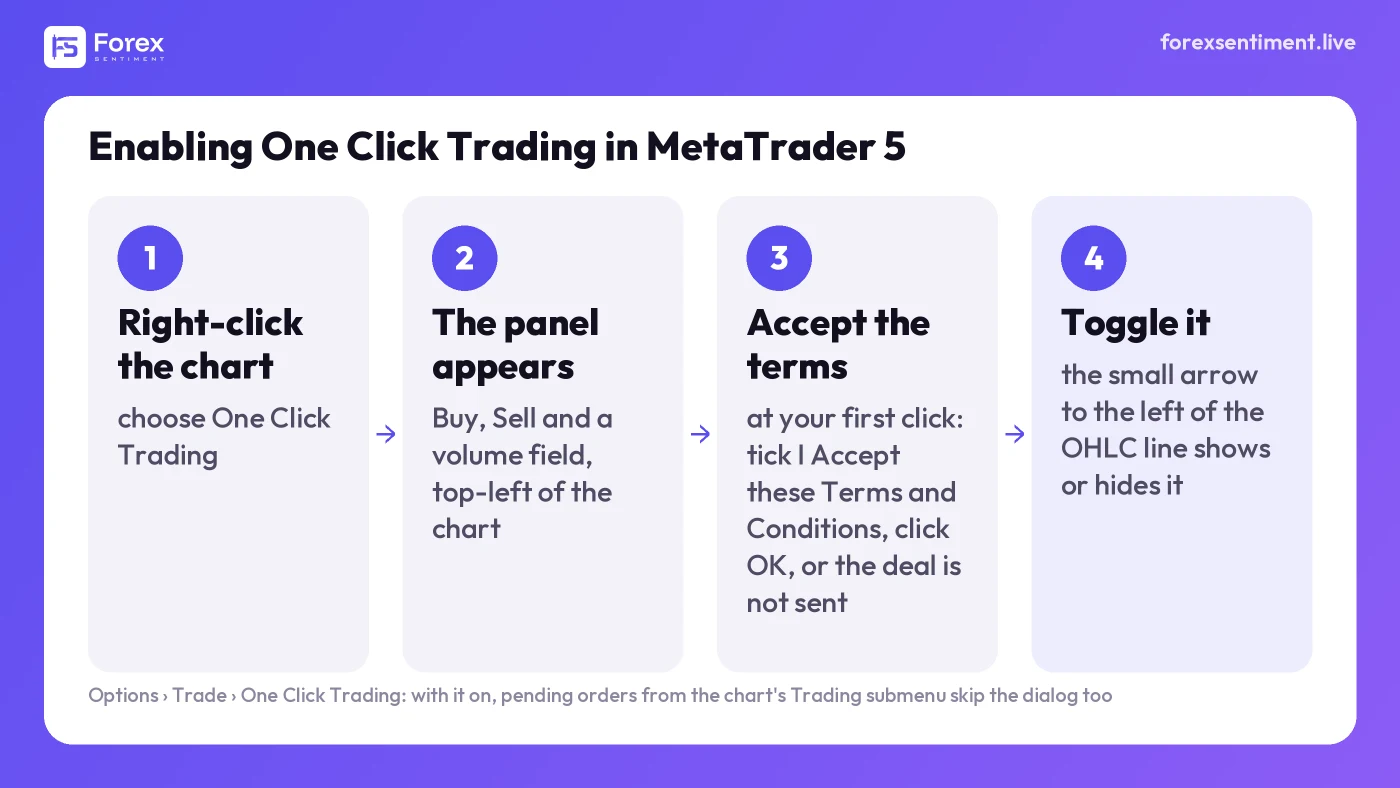
The steps to switch on One-Click Trading, as described in the MetaTrader 5 help: right-click the chart, the Buy/Sell panel appears, the terms are accepted at the first click, and the small arrow left of the OHLC line hides or shows it.
Why the One-Click Panel Is Not Showing
"One click trading MT5 not showing" is the usual complaint. Three of its causes are documented in the help; the other two are platform basics that the help covers elsewhere:
- It is hidden, not off. The arrow to the left of the OHLC line collapses the panel. Click it once.
- The agreement was never accepted. Until "I Accept these Terms and Conditions" is ticked, from the chart menu or from Tools → Options → Trade, the function does not start.
- The account uses Request execution. The help states that the feature "is available in all execution modes except for 'Request' execution. In the latter case, a standard trade dialog appears": in that mode a price is first requested from the broker and the deal is confirmed at that price. Instant, Market and Exchange execution work with the panel.
- You are logged in with the investor password. The "Connect to an Account" page is unambiguous: "Investor authorization allows you to see the account status, analyze prices, and work with your own Expert Advisors, but not trade." No trading means no one-click.
- The connection is down. With the terminal disconnected nothing can be sent; the status in the bottom-right corner of the platform is the place to look before anything else.
One more thing worth checking, not from the help but from experience: that the chart is of a symbol the account can trade, because the panel belongs to the chart and a symbol the broker does not offer for trading has nothing to send.
What a Click Actually Sends
A click on Buy or Sell sends a market order for the volume in the field, at the current price (in Instant execution, within the deviation set in the options). No dialog, no second look; and the same one-click logic applies to the close button in the Trade tab, where, in the words of the help, a position "will be immediately closed without additional confirmation". That is the feature and the hazard in one sentence: the same speed that lets you react to a breakout lets a mis-click open a full-size position.
Two things a click does not do. It does not attach a stop loss or a take profit; those are added afterward by dragging the position's level on the chart, which requires "Show trade levels" to be enabled in the same Trade tab (and is disabled by "Disable dragging of trade levels"). And it does not place pending orders. A limit or a stop order still goes through the chart's context menu (Trading submenu), never through the Buy/Sell box. Normally that menu opens a dialog to adjust the parameters; with One-Click Trading enabled, the help notes, the order is placed from the menu without the dialog.
What the Built-In Panel Cannot Do
- Size from risk. The volume is whatever number is in the field. Nothing relates it to your account, to the distance of the stop, or to the percentage you are willing to lose.
- Attach the stop at the moment of the order. Between the click and the drag there is a position with no stop, and on a fast market that gap is where the damage happens.
- Know the plan. It has no idea where the levels are, which direction the day's analysis favors, or whether the trade duplicates exposure you already carry.
- Ask. There is no confirmation by design. For some traders that is the point; for anyone sizing a prop-firm account, it is a liability.
How a Trade Panel Fills the Gap
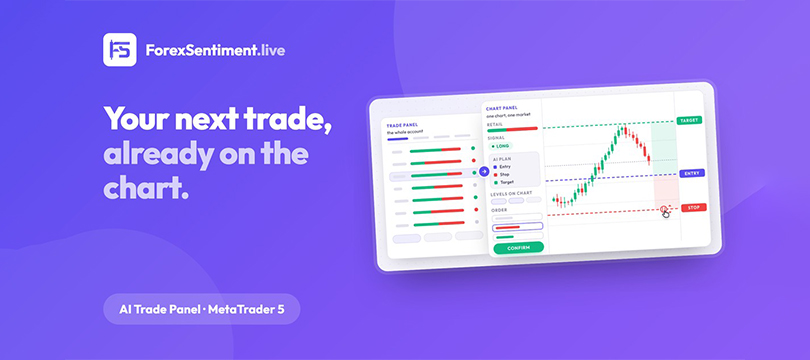
A trade panel is an Expert Advisor that sits on the chart and does the arithmetic the built-in box leaves out. Take the ForexSentiment AI Trade Panel as the example. The lot can be a fixed number, a percentage of equity or a percentage of balance, so the stop distance decides the size and not the other way around. The stop and the target are filled in before the click: from the nearest support and resistance of the site's analysis, with an "Auto SL buffer" in pips beyond the level so a wick on the level is less likely to stop you out, or from the daily plan's published entry, stop and two targets. The confirmation dialog is on by default and restates the whole order: type, lots, price, stop, target, risk in your account currency and the moment the order expires. A plan order is one click plus the confirmation, at the plan price: a limit that fills at the published price or not at all.
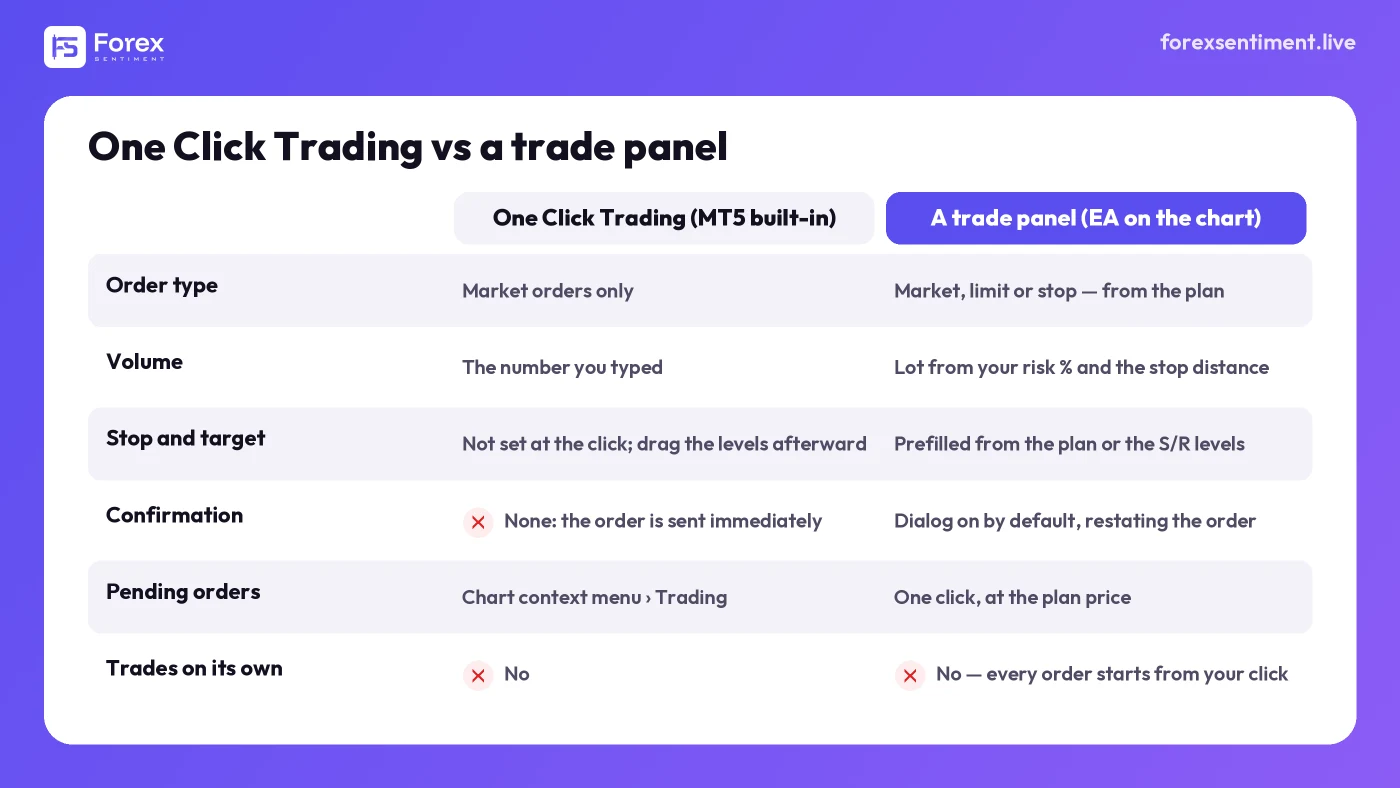
What the built-in panel does and what a trade panel adds. Neither trades by itself; the difference is what is worked out before the order goes out.
What the two have in common matters as much as what separates them: neither trades by itself. The built-in panel waits for your click; so does the trade panel, which never opens, reverses or scales a position on its own; its only automatic rules are the opt-in, close-only protections you arm yourself. The difference is entirely in what has been worked out before the click. For a look at that worked-out version in practice, tab by tab, see the trade panel for MetaTrader 5, screen by screen: what each row shows, how a plan becomes an order, and the protections that can only close.
A Sensible Setup, Whichever You Use
- Set the default volume in Tools → Options → Trade to the smallest lot your broker allows, so a mis-click costs a lesson and not a week.
- Enable "Show trade levels" and leave dragging on, so a stop can be added and moved on the chart in seconds.
- Decide the stop before the click (where to place it is a guide of its own). The support and resistance levels the site publishes for all 29 markets are one place to start; the signals page shows, for each pair, the nearest level and the distance to it.
- If the account is a prop-firm evaluation, prefer a tool that asks for confirmation and can close everything at a loss ceiling you set; the built-in panel does neither.
- Keep the execution mode in mind: on a Request-execution account a click opens the standard trade dialog instead of sending the order, and that is not a bug.
Related Reading
- The panel's user guide: installing an EA on MT5, the Algo Trading switch, the allowed WebRequest URL, and every screen.
- The platform's own page: "One Click Trading" in the MetaTrader 5 help (the settings, trading and account pages sit next to it).
How This Article Was Made
The behavior of the built-in feature is taken from the MetaTrader 5 help (the "One Click Trading", "Platform Settings", "Executing Trades", "Basic Principles" and "Connect to an Account" pages), read on 8 September 2026; quoted phrases are the platform's. The trade panel section describes the ForexSentiment AI Trade Panel from its public manual. Trading carries a substantial risk of loss and is not suitable for every investor; a panel decides how an order is placed, never whether the trade was a good idea.